
Improving work zone safety with Live Link
On this page, you'll find everything you need to start successfully closing lanes and roads with Live Link.
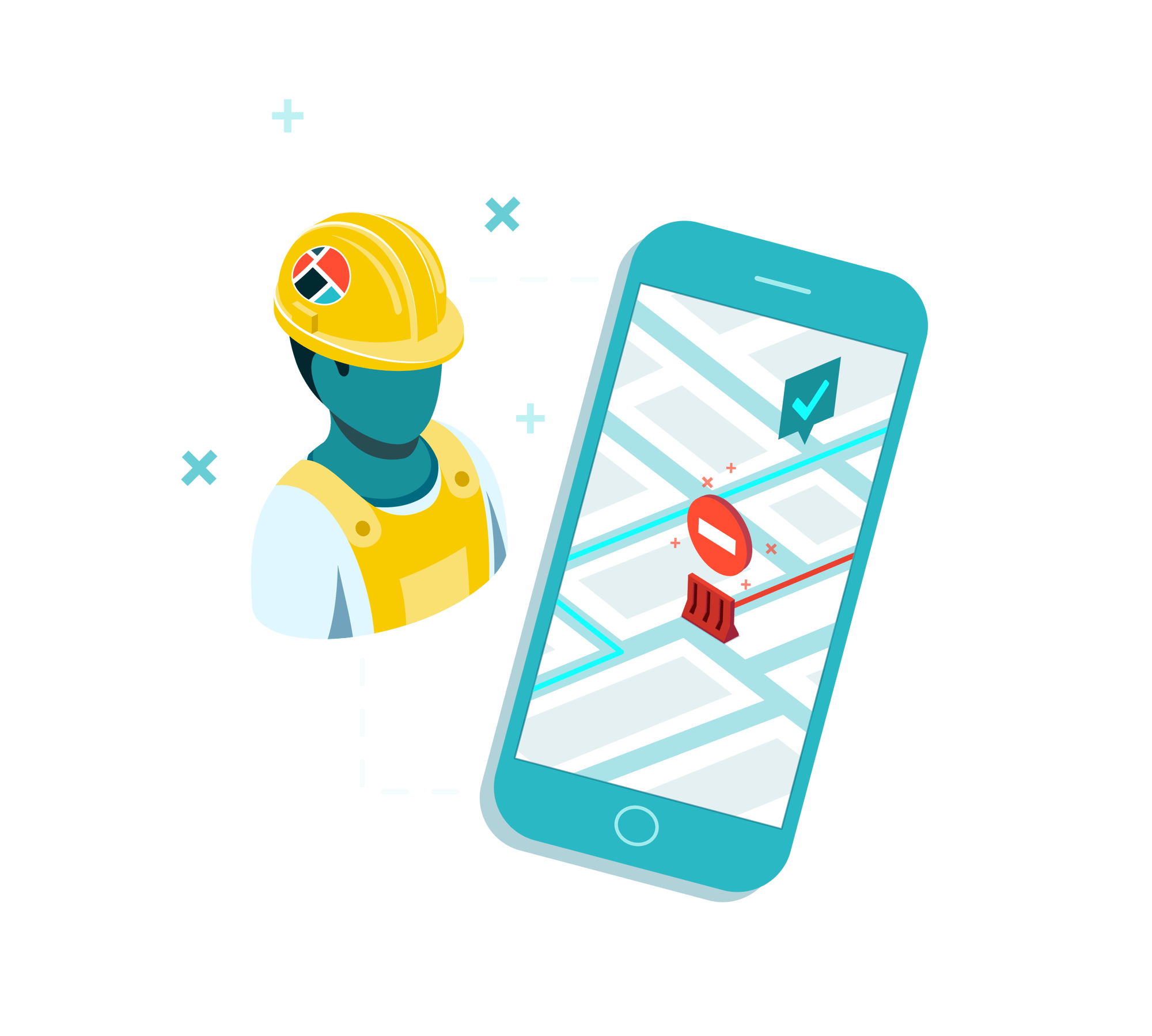
Communicate lane closures and active work zones in real-time
With Live Link, certified users can plan and communicate lane closures, with real-time updates pushed to major GPS providers to influence driver behavior. Live Link is designed to help you improve safety outcomes, enabling you to close lanes and roads, flag when workers are present at work zones and set temporary speed limit changes.
Learn more about Live Link with the resources below, including a training video, product quick guide and FAQs.
Live Link Training Video
In this short video, you can learn how to close lanes and roads in the Live Link app from your mobile device.
Live Link Quick Guide
If you'd prefer to read a step by step guide on using Live Link, download the Quick Guide below.
FAQs
Is the app available on both Apple and Android devices?
Yes - but you will not be able to find the iPhone app in the App Store. After completing, the online quiz, you will receive links to directly download the app onto your mobile device.
How do I download the app?
Certified users will be provided with a link to download the app after completing online training.
To get Live Link Certified, visit this page and take the quiz.
Once you've correctly answered 10 of the main quiz questions, you will receive an email with a link to download the app. However, you will not be able to login until your login credentials are issued to you by your Community Administrator(s).
What should I do if I encounter any issues using the Live Link app?
Please ensure you are using the latest version of the Live Link app. Review guidance for iPhone users or Android users on how to manually update the Live Link app on your cellular device. Manual updates should not be necessary if your cellular device is set to automatically download updates.
My username and password is not working, what should I do?
Your activation email may have been blocked by your email server. You can still activate your account by following the same steps to reset your password.
For step-by-step assistance, review this Quick Guide or view this video.
For additional help, send an email to help@one.network.
I can't login to the Live Link app. What's wrong?
You may have created a separate account for the one.network Public Map, or your account may need additional permissions. Your credentials to use the Live Link application can only be created by your Community Administrator(s). Please contact your Community Administrator(s) for further assistance.
I need to close a road that is further than 200 yards from me, is this possible?
Your agency may remove geofencing restrictions on a case-by-case basis. Contact your agency to discuss your project's specific needs.
Can I add additional lanes when creating a lane closure?
Yes you can. Click on the +/- sign to add or remove lanes.
Which lane is closest to the median?
Lane one. When adding lanes, they will be numbered left to right.
If the closure is an emergency, can I edit the start date/time?
No. You can only edit the start date/time for non-emergency closures.
If the closure is a non-emergency, can I edit the start date/time?
Yes - but you will not be able to enter a future start date/time when entering a closure on the mobile app.
Workers are no longer present on site, do I need to make any changes to the closure?
Yes. Click on the closure and switch the 'Workers present' toggle off.
The closure is opening earlier than I expected, do I need to re-open the closure manually?
Yes. Click into the closure and select 'Open lane/road'.
There is congestion on the highway, can I use Live Link to soft close a road?
No. Live Link will help save lives but to maintain this level of trust, accuracy and timeliness is key. Misusing Live Link will result in closure information being overridden by GPS service providers or being ignored by drivers, greatly reducing the impact.
The closure is taking longer than planned. Can I postpone the end date/time?
Yes. The end date can be updated until the closure expires.
Additional lanes are added or dropped within the segment of my closure. How do I input this into Live Link?
Please review this recommendation on how to input closure information in this scenario.
How to add road closure notifications to my device
Read this short guide to enabling notifications for your own and other road closures